Add your Systeme.io product to the marketplace so affiliates can find and promote it. The form shows a checklist of what's still missing.
Start a new product
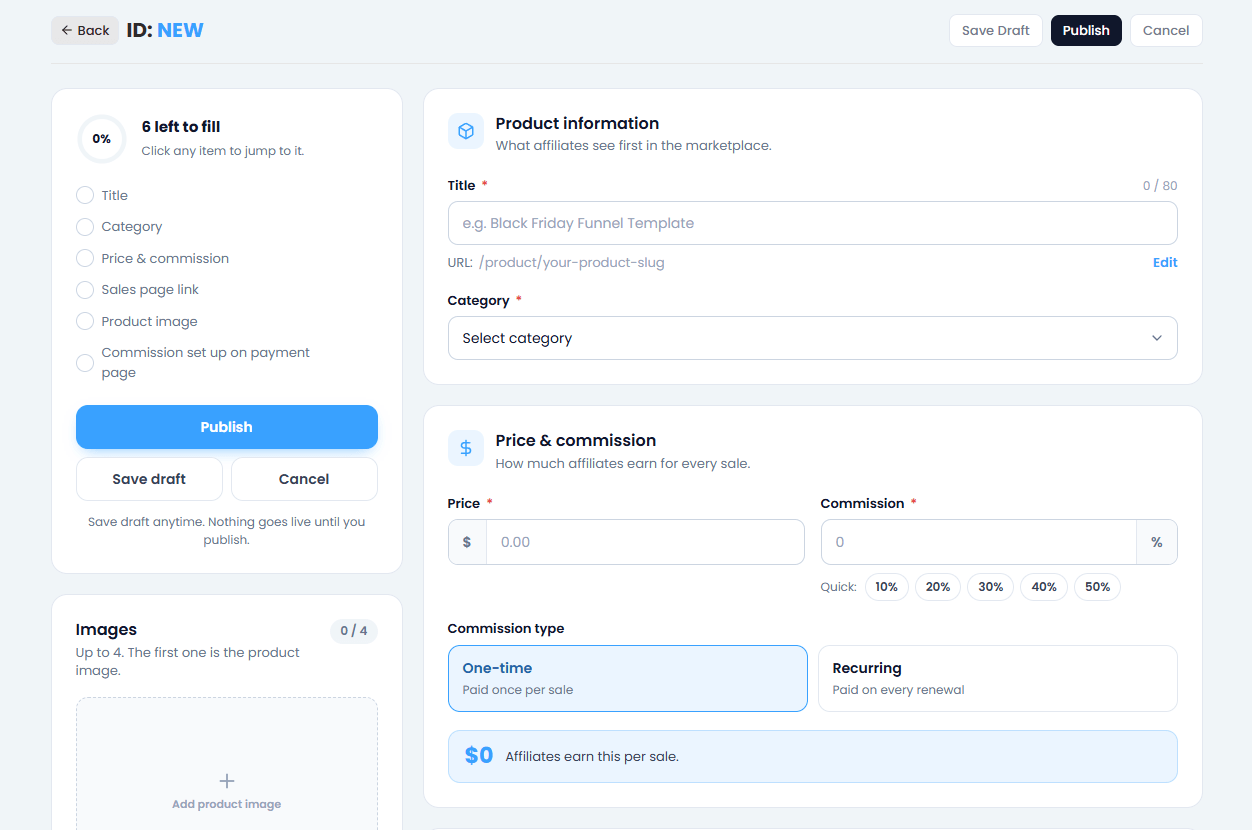
Go to Products → Add product. The checklist on the left fills up as you complete each part.
Screenshot: the Add product form with the checklist
Add images
Add up to 4 images. The first one is the main product image on cards and share previews. A 5:4 shape (for example 1500 × 1200 pixels) looks best.
Fill in the details
Add the product name, category and description, then:
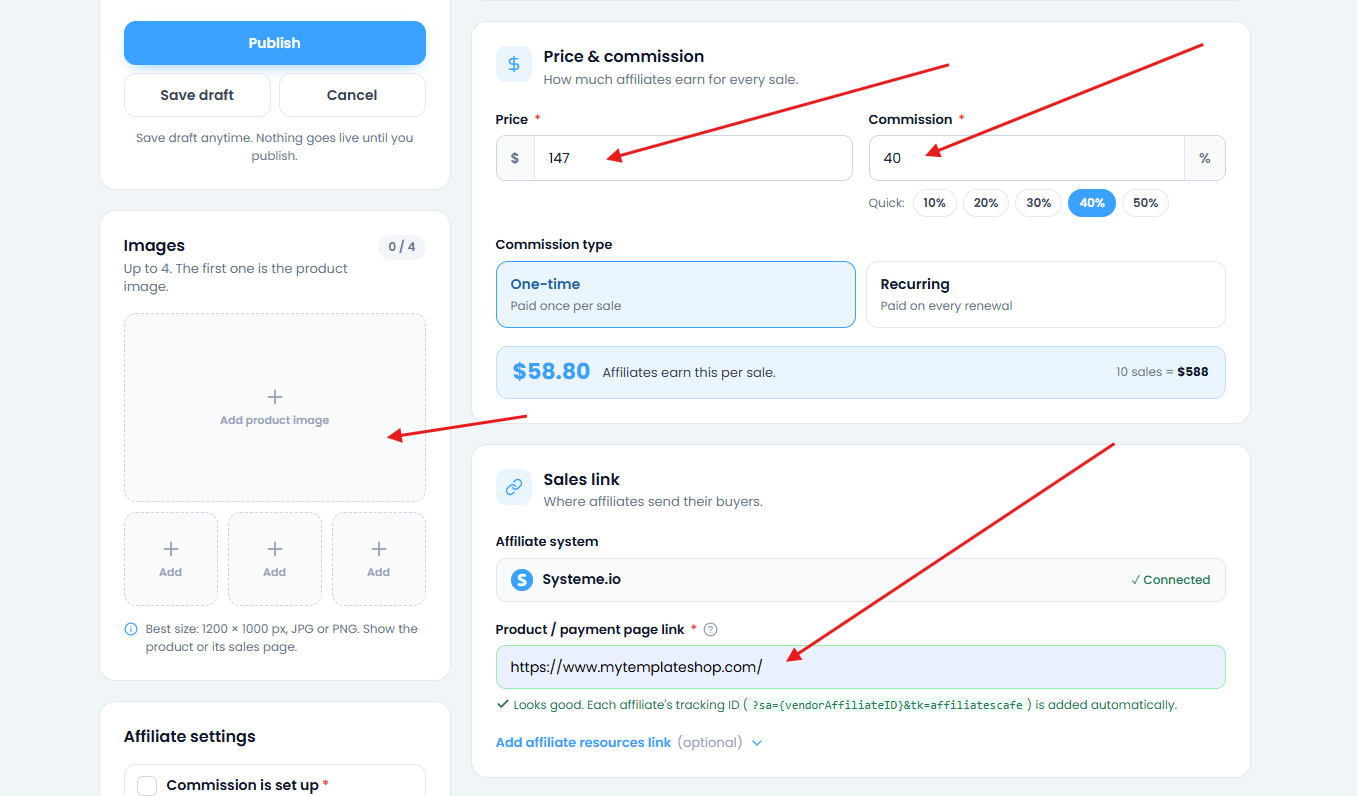
Price and commission rate (the % affiliates earn per sale)
Whether the commission is recurring (for subscriptions)
Your sales page link and the affiliate system (Systeme.io)
Your promo resources link: a page with images, emails or swipes affiliates can use
Screenshot: price, commission and links in the product form
Add your funnel steps (optional)
List the pages of your funnel. Affiliates see them in the Funnel steps tab, so they know what buyers go through.
Submit for review
Click Submit for review. Our team checks new products, usually within 24 hours. You can also save a draft and finish later.
Instant approvalSome plans include instant approval: your products go live without waiting for review.
2 minute read4 steps
Product review: pending, rejected or unpublished
Every new product is checked before it goes live. Here's what each status means and what to do.
Pending review
We're checking your product, usually within 12 to 48 hours. You'll get a notification as soon as it's done.
Live
Your product is approved and visible in the marketplace. Affiliates can now promote it.
Rejected
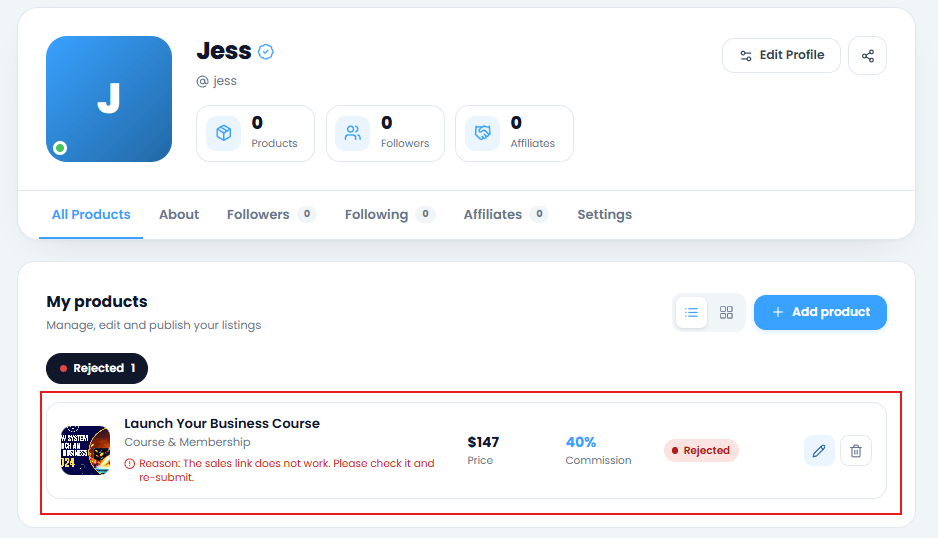
Something needs fixing. The reason is shown with the product. Edit the product, fix the issue and submit it again.
Screenshot: a rejected product with the reason shown
Unpublished or Disabled
The product is hidden from the marketplace. If it says action required, read the note, make the changes and submit it again.
Blocked products can't be published again. If you think that's a mistake, contact us.
Avoid delaysClear images, a working sales page and an honest description get approved fastest.
2 minute read4 steps
Edit, unpublish or delete a product
You can change a product at any time, hide it for a while, or remove it completely.
Find your products
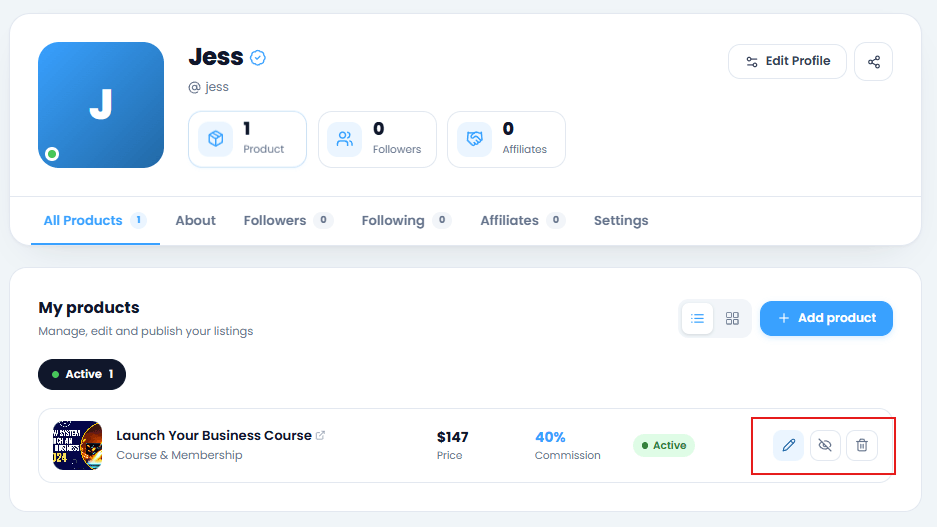
Open Products in the left menu, or your profile. Each product has a pencil, an eye and a bin button.
Screenshot: your product cards with the edit, unpublish and delete buttons
Edit
Click the pencil, make your changes and save. On the product page you can also use ⋯ → Edit product.
Unpublish or publish again
Click the eye to hide a product from the marketplace. Affiliates can no longer start promoting it. Publish it again whenever you're ready.
Delete
Click the bin to delete the product for good.
Think of your affiliatesIf affiliates are promoting the product, let them know before you unpublish or delete it, so their links don't lead nowhere.
2 minute read4 steps
Manage affiliate requests
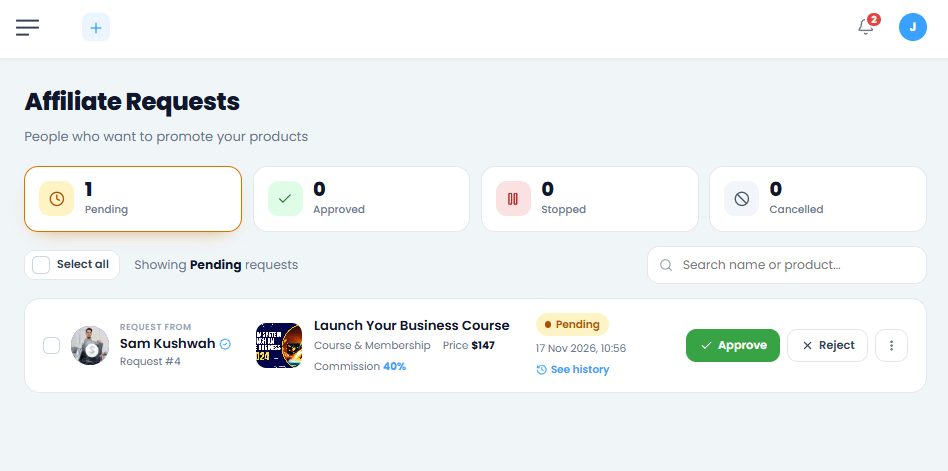
When someone wants to promote your product, their request appears in Affiliate Requests. You decide who promotes you.
Open Affiliate Requests
Go to Affiliate Requests in the left menu. New requests are in the Pending tab.
Screenshot: the Affiliate Requests page with pending requests
Approve or reject
Check who's asking (click their name to see their profile), then click Approve or Reject. Approved affiliates get their link straight away.
Handle many at once
Tick several pending requests, then use Approve or Reject in the bar at the bottom.
Cancel or block someone
Use the ⋯ button on a request to cancel it or block that person from promoting the product. Blocked people can be unblocked later. See history shows everything that happened with a request.
Instant approvalProducts can approve affiliates automatically, so they don't wait for you.
Still stuck?
Send us a message and we'll reply by email, usually within 24 hours.